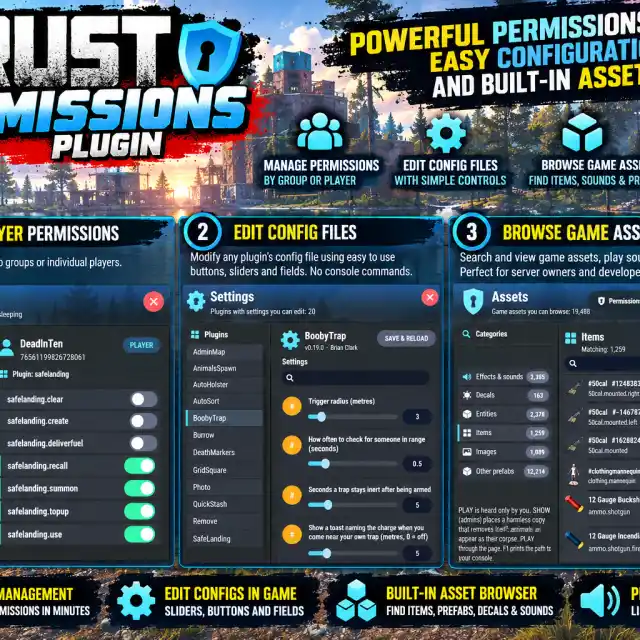
How to Install Rust Plugins on Oxide (uMod) and Carbon
Where a Rust plugin file goes on an Oxide or Carbon server, how to load, configure and reload it, how to grant its permissions, and what to check when it does not load.
A Rust server plugin is a single C# file, such as Sonar.cs. You do not compile it yourself: the server's modding framework, Oxide (uMod) or Carbon, compiles it when it loads. Installing one takes a minute once you know where things go.
1. Check which framework your server runs
Look in the server's main folder, the one with RustDedicated:
- an
oxidefolder means Oxide (uMod) - a
carbonfolder means Carbon
If there is neither, the server is vanilla and needs a framework first. Most game hosts install one from their control panel; on your own machine, extract the framework's release over the server folder. Both have to be updated after every Rust update, so turn on automatic updates if your host offers them.
Every plugin in our catalogue runs on both, so either is fine. If you are choosing, see Oxide vs Carbon.
2. Put the file in the plugins folder
- Oxide:
oxide/plugins - Carbon:
carbon/plugins
Upload the .cs file there with your host's file manager or FTP. Do not rename it. The file name has to match the plugin's class name, so Sonar.cs must stay Sonar.cs, not Sonar (1).cs or sonar-v1.2.cs. Browsers add a number to a second download of the same file; delete the old copy first.
Both frameworks watch the folder, so there is no restart. Within a few seconds the server console shows a line like:
Loaded plugin Sonar v1.3.3 by Brian Clark3. Configure it
On first load most plugins write a config file with their defaults:
- Oxide:
oxide/config/Sonar.json - Carbon:
carbon/configs/Sonar.json
Edit it, then reload the plugin so it reads the changes:
oxide.reload SonarOn Carbon the command is c.reload Sonar. Carbon also accepts the Oxide spellings, and both accept the short form o.reload. A JSON mistake, such as a missing comma, makes the plugin fall back to its defaults or refuse to load, and the console says which line is wrong.
Messages players see usually live in a language file (oxide/lang/en/Sonar.json, or carbon/lang/en/Sonar.json), so you can change the wording without touching the config.
4. Grant the permissions
Most plugins do nothing until a player has their permission. Every plugin page here lists its permissions in the Commands & Permissions section. Type these in the server console or over RCON:
oxide.grant group default sonar.use
oxide.grant group admin sonar.admin
default is every player; admin is the players with admin rights. On Carbon, use c.grant, or the same o.grant form. There is a full explanation in Rust permissions explained, and Perms lets you do the same with switches in game.
5. If it does not load
- Nothing in the console? Check the folder, and that the file ends in
.csand not.cs.txt. - A compile error? The console names the file and the line. After a Rust update, a plugin written for the old version can fail until its author updates it; with ours, download the latest version from My Plugins.
- "Plugin not found" when reloading? Use the class name (
Sonar), not the file name with.cs. - It loads but does nothing? Almost always a missing permission. Grant it to yourself first to test.
To list everything that is loaded: oxide.plugins (Oxide) or c.plugins (Carbon).
Updating a plugin
Replace the file in the plugins folder with the new version and it reloads on its own. The config and data files stay, so your settings survive. Read the plugin's changelog first: now and then a new version adds config options, which appear in the file after the reload.
Plugins mentioned
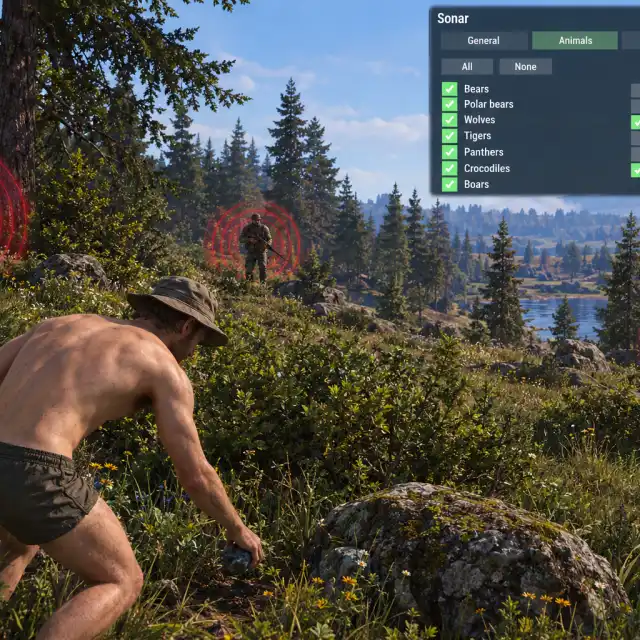
Sonar
v1.3.3A proximity warning that pings faster as players, animals, NPCs and vehicles close in.
- Rating:4.8
- Servers running it:214
- Ping rate tells you if a threat is closing or leaving
- Thirty-one things to watch, from bears to the patrol heli
- Per-player radius and filters
- Seven bundled languages